Is AI video analysis really frame by frame?
A timestamped report can help you find a product reveal, describe a shot, or organize a creative review. It does not necessarily mean the system inspected every frame. Here is how to use the report without confusing a useful map with a complete timeline.
The practical answer: check how the tool samples video, use its timestamps to locate candidate moments, and verify important details in the original. AdScanVideo currently analyzes video and available audio together. Its report provides candidate time references, not a guarantee that every source frame was examined or every event found.
Three different jobs that look similar
| Task | Useful output | What to verify |
|---|---|---|
| Sampled visual analysis | Descriptions of selected moments, settings, people, props, and broad changes | Anything that may happen between selected frames |
| Scene or edit detection | Candidate cut points, markers, or subclips | Whether each detected boundary matches an actual edit |
| Manual frame review | A check of a particular action or transition at individual frames | Source version, frame rate, playback position, and the interpretation |
A shot report describes the visual sequence interpreted from a clip. An edit detector looks for boundaries. Those are different outputs. For example, Adobe's Scene Edit Detection can add cuts, make subclips, or place markers at detected changes. It is not the same thing as a narrative analysis of a scene.
Why sampling can miss a fast detail
A clip at 30 frames per second contains 300 frames in ten seconds. A system inspecting selected images has less visual evidence than someone stepping through all 300. It may capture the setting and miss a one-frame overlay, a very quick hand gesture, or the precise instant a product appears.
Processing varies by tool and configuration. AdScanVideo's current native analyzer receives video and available audio together at its configured media resolution. Brief actions, small text, unclear speech and fast cuts can still be missed or misinterpreted. An explicitly configured fallback can use selected frames and available transcripts. Read our current methodology for the processing and data handling scope.
The earlier 20 retained frame description applied to an older sampled pipeline. It should not be used as the specification for today's native analyzer. The practical review rule remains the same: use a report to locate candidates, then replay the source to confirm important claims.
A real example: nine entries do not mean nine cuts
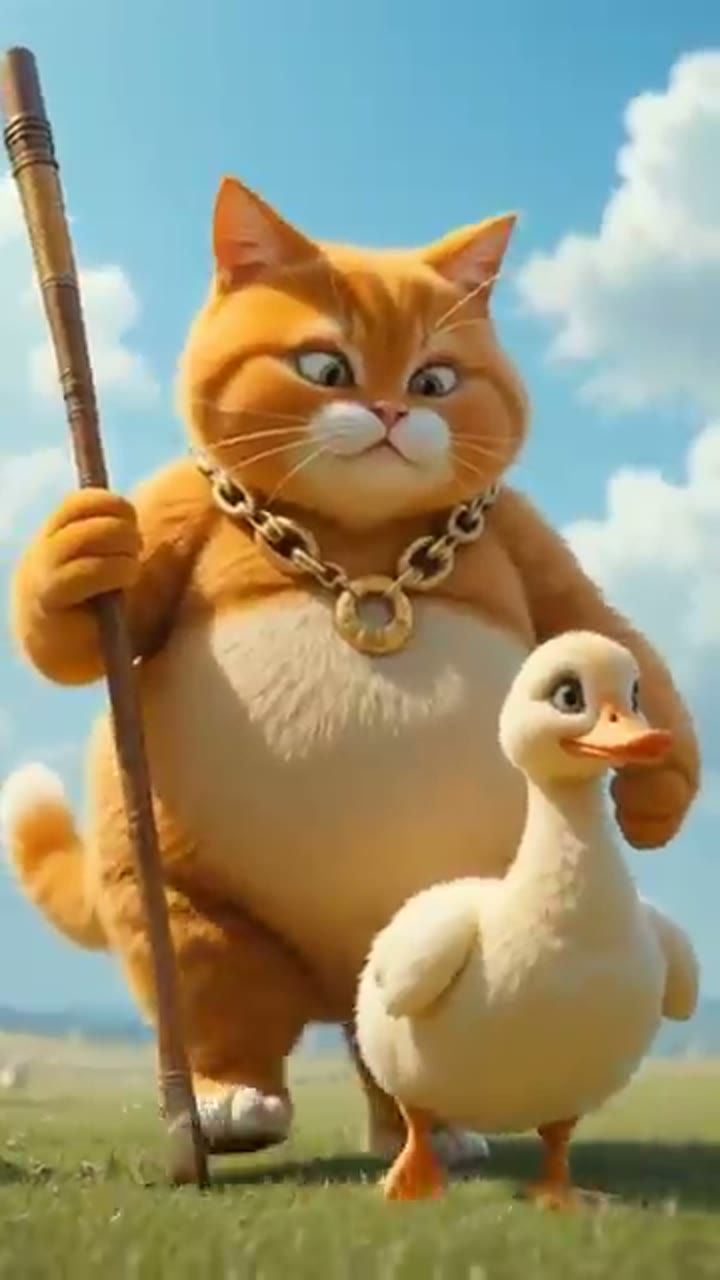
This historical sampled-pipeline example is not a benchmark of the current native analyzer. The 8.64-second animation produced 12 sampled frames, 11 retained frames, and nine report entries. The broad sequence was field, motorcycle, then kitchen. Several later entries describe similar cooking imagery. Those numbers count different things: images considered, images retained, and written observations.
You should not infer nine unique camera setups or nine exact edit boundaries from nine rows. A row can repeat an ongoing action. Several sampled images can belong to one shot, and a short shot can fall between samples. A time reference like 00:03 to 00:04 is useful for finding a candidate moment, but the report alone does not establish its first and last source frames.
A five-pass review for ads and creator footage
How to verify a video timestamp without reviewing everything again
Start with the claim that affects your next decision. If the report proposes an opening edit, replay the opening. If you need a quote, listen to that sentence and its surrounding context. Targeted replay can make verification more manageable, but it does not establish that unreviewed parts of the report are correct.
- Keep the same source version. Note the filename, duration and whether you uploaded a complete video or an excerpt. A revised cut can move the event.
- Jump to the candidate. For a locally uploaded video retained in your current browser session, use the report's timestamp control to seek the original player. If the player is unavailable, reopen your original file in an editor. AdScanVideo does not keep a customer video library for later replay.
- Replay before and after it. Include enough context to confirm the action, speaker and sequence. Expand the window if the event starts outside the suggested range.
- Record a decision. Mark the observation Verified, Corrected, Uncertain or Not found. Keep the original suggested time separately from your corrected review range.
For an existing captioned YouTube video, YouTube's transcript view lets you select a transcript line to jump to its associated point. In an editing workflow, Premiere's Text Based Editing supports navigating and searching source transcripts. These are examples of source navigation, not a promise that a generated quote is correct or an integration with AdScanVideo.
Stress test: two similar actions, only one matching line
Illustrative test, not a measured result: record two takes of a person lifting a product. In the first, they say “Here is the blue bottle.” In the second, they say “This fits in my bag.” A query for lifting the product while saying the second line needs both the visual action and the dialogue. Finding the first take is a false match for that query even though the action looks similar.
Use your own or permitted footage. Before asking the tool, watch the source and record both candidate ranges and their actual dialogue. Keep this ground truth outside the tool's output so you do not judge an answer against itself.
| Query | What the test checks | Review decision |
|---|---|---|
| Find the person lifting the product | Visual candidates | Either take may be relevant; record all returned candidates |
| Find the lift while they say “This fits in my bag” | Action and exact dialogue together | Confirm the second take by listening and watching |
| Find the lift while they explain that it is portable | Meaning of a paraphrased request | Check the explanation against the actual speech |
| Find the lift while they say a line absent from the clip | Unsupported match handling | Record no match, uncertainty or an unsupported assertion separately |
A result can identify the correct take but provide an imprecise range. Record event selection and timestamp usefulness separately. Likewise, an uncertain answer should not be counted as a confidently correct match. One clip cannot establish an overall accuracy rate.
Download a blank video moment test worksheet
Download the free CSV worksheet. It contains blank rows for the query, source version, ground truth, returned range, action match, dialogue support, corrected range and review decision. This is a manual review asset, not a CSV export feature of the analyzer.
Fill one row per query and candidate. For an absent dialogue query, set Dialogue support to Absent and record whether the response asserted a match. For unclear audio, use Unclear rather than guessing. Keep private filenames and report text out of public test records. Reuse the same clip and wording when comparing versions, and preserve the original output with the test date.
To try the workflow, upload your clip and choose Find moments. Ask for the action and confirmed dialogue together, then replay the returned candidates. Do not treat an empty result as proof that an event never occurred.
Keep excerpt time and source time together
If you export a segment that begins at source time 02:10, an observation at excerpt time 00:05 points approximately to 02:15 in the original. Preserve that offset in your notes. This arithmetic locates a review position; it does not make a rounded model timestamp frame accurate. If you change speed, rearrange footage, or use another version, a simple offset may no longer describe the mapping.
Copy this verification worksheet
Source filename/version (keep private):
Review goal:
Excerpt starts at original time:

Report time | Original review position | Observation | Verified / uncertain
00:__       | 00:__                    |             |

[ ] Original clip retained for reference
[ ] Important action replayed before and after suggested time
[ ] Repeated report rows not counted as unique shots
[ ] Quotes, speaker and onscreen text checked separately
[ ] Equipment and intent inferences marked as uncertain
[ ] Exact cut markers checked in the editing timeline
[ ] Final brief identifies its source version and excerpt offset
Use the worksheet alongside a creative brief. Keep useful observations, record corrections, and avoid handing a teammate a confident-looking report with no indication of which details you checked.
Common questions
Does AdScanVideo inspect every frame?
The current analyzer processes video and available audio, but does not promise exhaustive frame coverage. Use candidate timestamps for navigation and check precise boundaries in the original editor timeline.
Can I use the timestamps as exact edit points?
Use them to find the relevant section. Check the actual boundary in an editor before making a frame accurate cut. Rounded timestamps and sampled observations are not an edit decision list.
Will splitting a video guarantee that it captures every action?
No. A focused excerpt can make the review question easier to address, but sampling and model interpretation still have limits. Inspect the original when a missed action would change the conclusion.
Does matching the action prove the requested dialogue occurred?
No. A repeated action can look similar in several takes. Listen to the candidate and compare the speech with the request before using it as a quote or select.
Can a shot report prove which camera or lens was used?
Usually not from appearance alone. Describe the visible framing, motion, light, and desired style; use production metadata or other evidence for exact equipment claims. Our video-to-prompt worksheet helps turn observations into an original direction.
Sources and scope
This workflow draws on Adobe's Scene Edit Detection and Text Based Editing guidance, YouTube's transcript navigation help, AdScanVideo's current pipeline specification, and the linked public sample report. Provider processing options differ and may change. The review worksheet is our practical recommendation, not a provider guarantee.
Build a useful map of your clip
Upload a video file, choose Shot breakdown, and check the report against the original. One analysis is free each day without signup.
Analyze a video